Asset overview
Understand the setup.
Then make it your own.
Distance Links Pro is a Blender Geometry Nodes asset in OmniKit’s utilities collection.
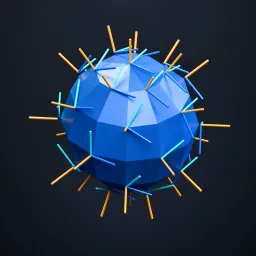
MESH INPUT and separate mesh Target required. Draws amber vertex-to-nearest-surface links and cobalt endpoint markers. Filters local distance interval and deterministic index stride/cap. Stores omni_link_distance and omni_link_valid on SOURCE vertices; visual attributes are not measurements. Missing target draws no links. Not raycasting, collision detection or geodesics. Nearest-point correspondences can jump during animation. Visuals output excludes source. See Utility Visualizers Examples scene. AI preview is illustrative.
Its exposed inputs include Bypass, Every Nth, Maximum Samples, Selection, Minimum Distance, Maximum Distance, Radius. Review the control reference below to plan a suitable setup.
Source and setup notes
Source node name: OMNI - Distance Links Pro
Collection: 07 Utilities/Visualizer Tools
Structural inspection used Blender 5.2.0 LTS. Other releases and render engines require separate checks.
How to approach this asset
- Check the source notes for the expected mesh, curve, field, shader or World context.
- Start with a disposable scene and a suitable input. Inspect required object, material or collection inputs.
- Adjust one documented control at a time. Evaluate the result before using it in a production project.