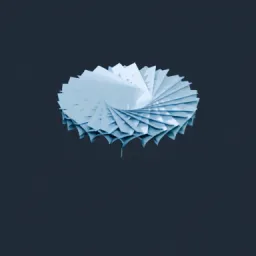
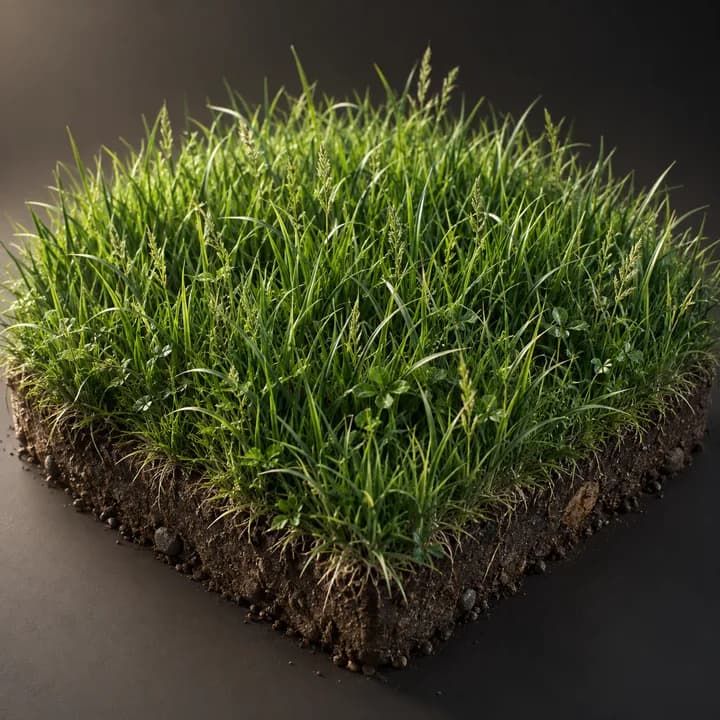
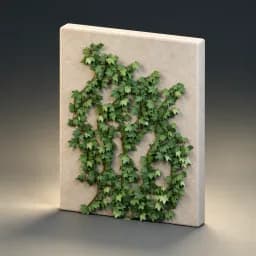
Asset overview
Understand the setup.
Then make it your own.
Branch Pro is a Blender Geometry Nodes asset in OmniKit’s nature collection.
MESH INPUT: drop on a mesh, or feed mesh geometry to Crown. Apply object scale for predictable distances. | Branch Pro - the space colonization algorithm of Runions et al. Attractor points are scattered through a crown volume you model yourself, and the tree grows one step at a time toward whichever attractors are nearest, consuming them as it arrives. Candidate nodes from several attractors pulling on the same branch are merged, which is what averages their directions and makes the branching natural rather than radial. The controller enforces the relations the paper requires - kill distance above the step, influence above the kill distance - so the growth can never stall. Branches taper from base to tip and the crown shape is entirely yours: any mesh works.
Its exposed inputs include Attractors, Iterations, Step, Influence, Kill Distance, Merge, Trunk. Review the control reference below to plan a suitable setup.
Source and setup notes
Source node name: OMNI - Branch Pro
Collection: 22 Geometry Nodes/Environment/Trees & Foliage
Structural inspection used Blender 5.2.0 LTS. Other releases and render engines require separate checks.
How to approach this asset
- Check the source notes for the expected mesh, curve, field, shader or World context.
- Start with a disposable scene and a suitable input. Inspect required object, material or collection inputs.
- Adjust one documented control at a time. Evaluate the result before using it in a production project.